ClassAddmin
← All guides

Handbook

Canteen Handbook

Kitchen and canteen staff serving meals and taking payment.

Download PDF4 topics across 4 chapters

Getting started

What you can reach, and what you cannot.

1.Welcome to ClassAddmin
Welcome to ClassAddmin — screen

ClassAddmin is your school's day-to-day operations cockpit. From a single dashboard you'll track admissions, mark attendance, send invoices, collect MoMo payments, message parents, and run payroll.

The first time you sign in, head to Overview - that's the home screen. It shows today's collections, this week's absences, anything that needs your attention, and shortcuts to the things you'll touch every day.

You don't need to be a computer expert. Everything lives in the left sidebar: People, Academics, Finance, Operations, Administration. If you can find the right section, you can do the task - every page is built around one job.

Three things to do on day one

  1. Add your school's logo and contact details under Settings → School. They appear on invoices, receipts and report cards.
  2. Invite your team under Settings → Staff. Each person gets a sign-in link by email, SMS or shareable URL.
  3. Open the Help button (bottom-right corner of every page) any time you're stuck. It searches our guides and can answer questions in plain English.

That's it - explore the sidebar at your own pace. If you ever get lost, the back button works the same as in any browser, and clicking the ClassAddmin logo (top-left) takes you home.
The weekly menu

Publishing what the kitchen is serving each day.

2.Set up feeding plans and publish the weekly menu

Set up feeding plans and publish the weekly menu — screen

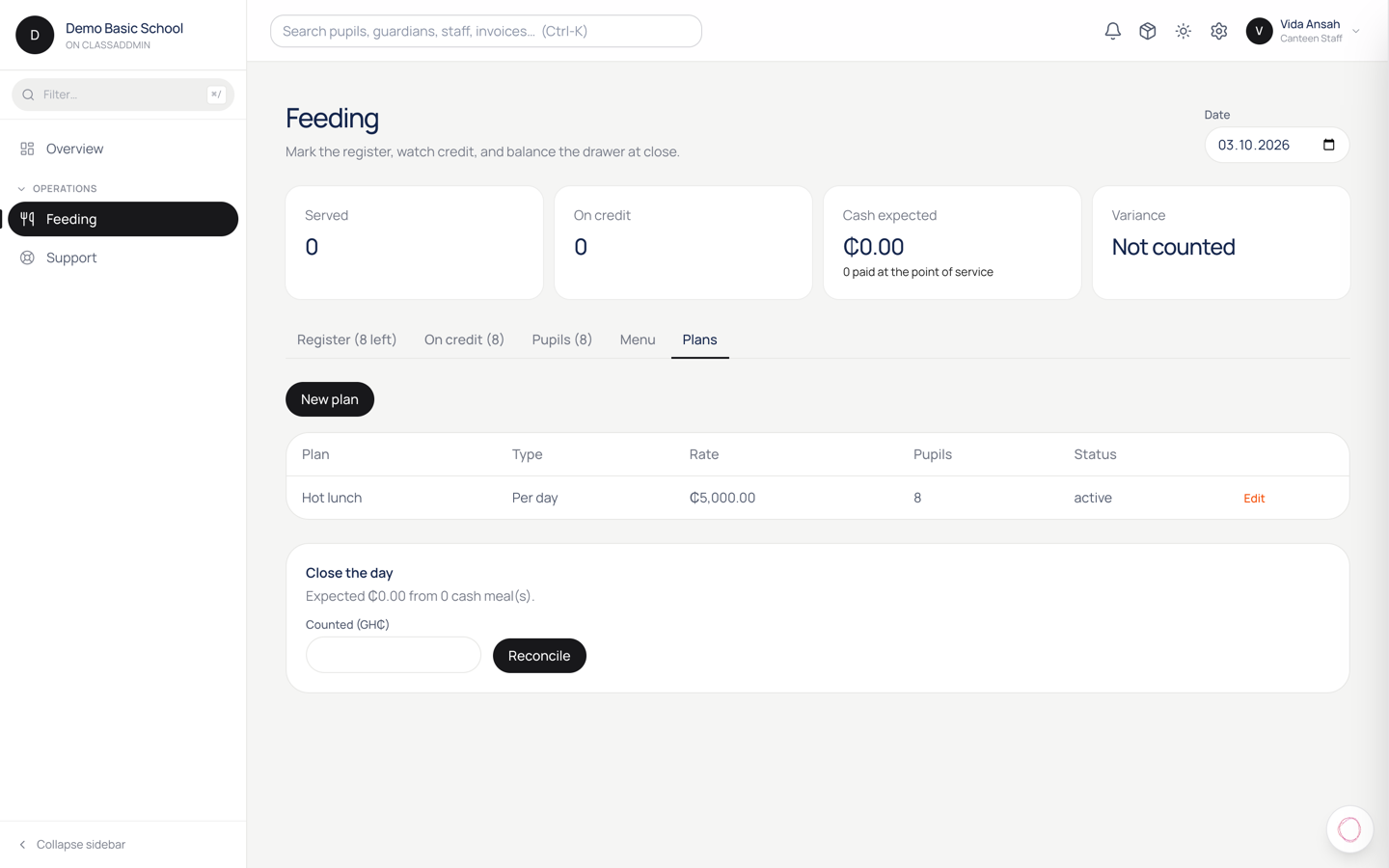
Before anyone can be served, feeding needs two things: plans, which say what a meal costs and how it's paid for, and a menu, which tells parents what's being cooked.

Find both at Feeding, on the tabs across the top.

1. Create your plans

A plan is how a pupil pays for meals. Most schools need one or two.

  1. Go to Feeding → Plans.
  2. Give the plan a Name parents will recognise — for example Standard lunch.
  3. Choose how it's Charged:
    • Daily — the pupil has a prepaid balance measured in days. Each meal served takes one day off it.
    • Termly — feeding is billed on the termly invoice like any other fee. There's no balance to top up.
  4. Set the Rate in cedis. On a daily plan this is the price of one meal.
  5. Save.

Which to choose

Termly is simpler: it rides on the invoice you already send, and nobody handles cash at the kitchen. Daily suits schools where families pay as they go, and it's the only one that gives you the prepaid balance and low-balance reminders.

You can run both at once — some families on termly, others daily.

2. Put pupils on a plan

  1. Feeding → Pupils.
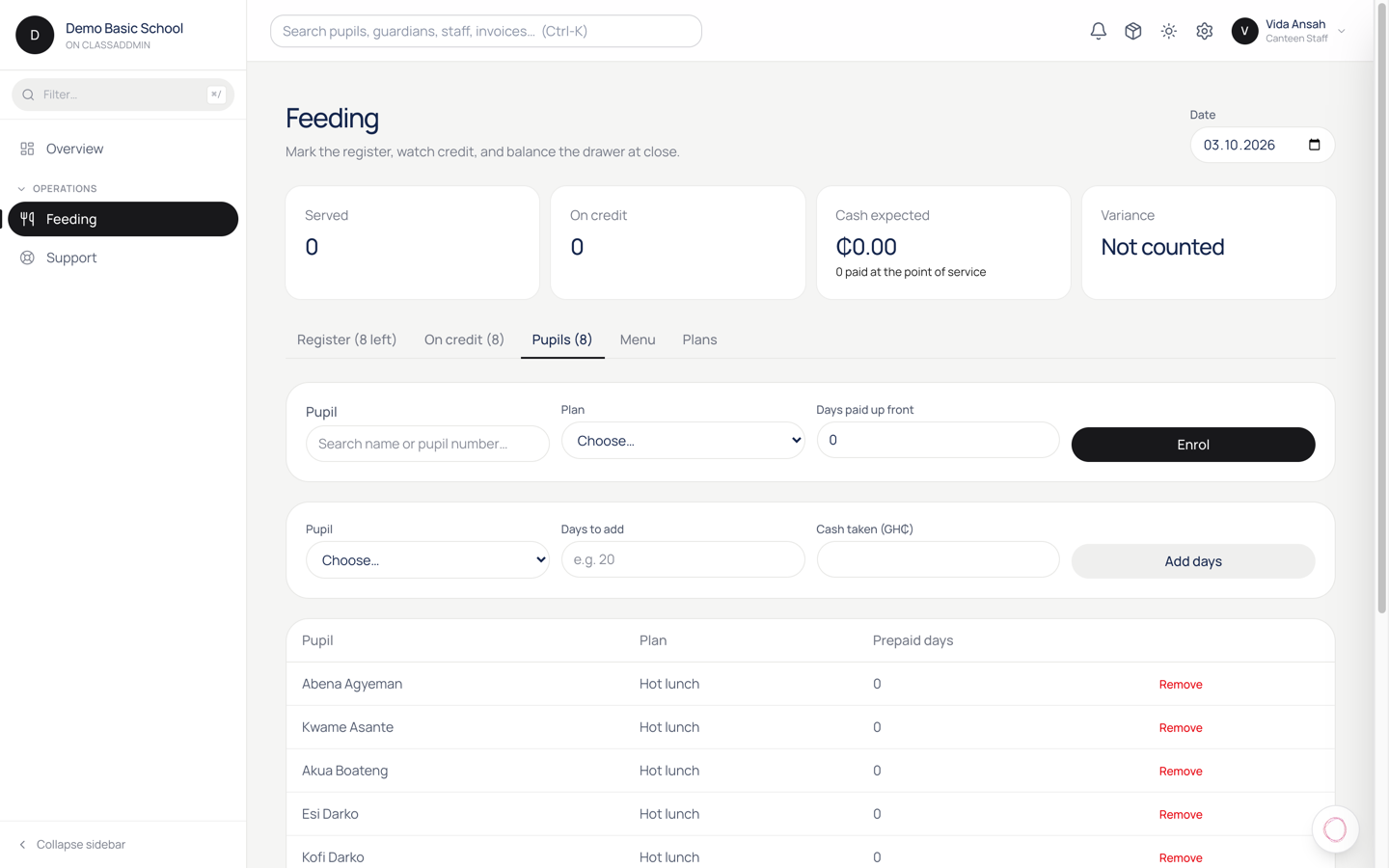
  2. Add a pupil, choose their Plan, and enter Days paid up front if they're starting with a balance.

Only pupils listed here appear on the register. A pupil with no plan is simply not a feeding pupil.

3. Publish the week's menu

  1. Feeding → Menu.
  2. For each day, type what's being served — for example Jollof rice with chicken.
  3. Save the day.

Where the menu shows up

The menu is what parents see in the app, on the home screen, for the days ahead. It's the main reason to keep it current: a parent checking whether to pack lunch is the person it's for.

Write it the way you'd say it. Jollof rice with chicken is better than Menu A.

Common gotchas

  • A pupil isn't on the register. They have no feeding plan. Add them under Pupils.
  • The menu is blank in the parent app. Nothing has been published for those dates. The app shows the days from today onwards, so yesterday's menu won't appear.
  • You changed a plan's rate mid-term. New charges use the new rate; meals already served keep what they were charged. That's deliberate — re-pricing the past would change balances parents have already settled.
  • Termly pupils show no balance. Correct. A termly plan is settled on the invoice, so there's nothing to top up and no balance to run down.

Serving

The daily register, marking who ate, and what it does to a prepaid balance.

3.Serve the feeding register and close the day

Serve the feeding register and close the day — screen

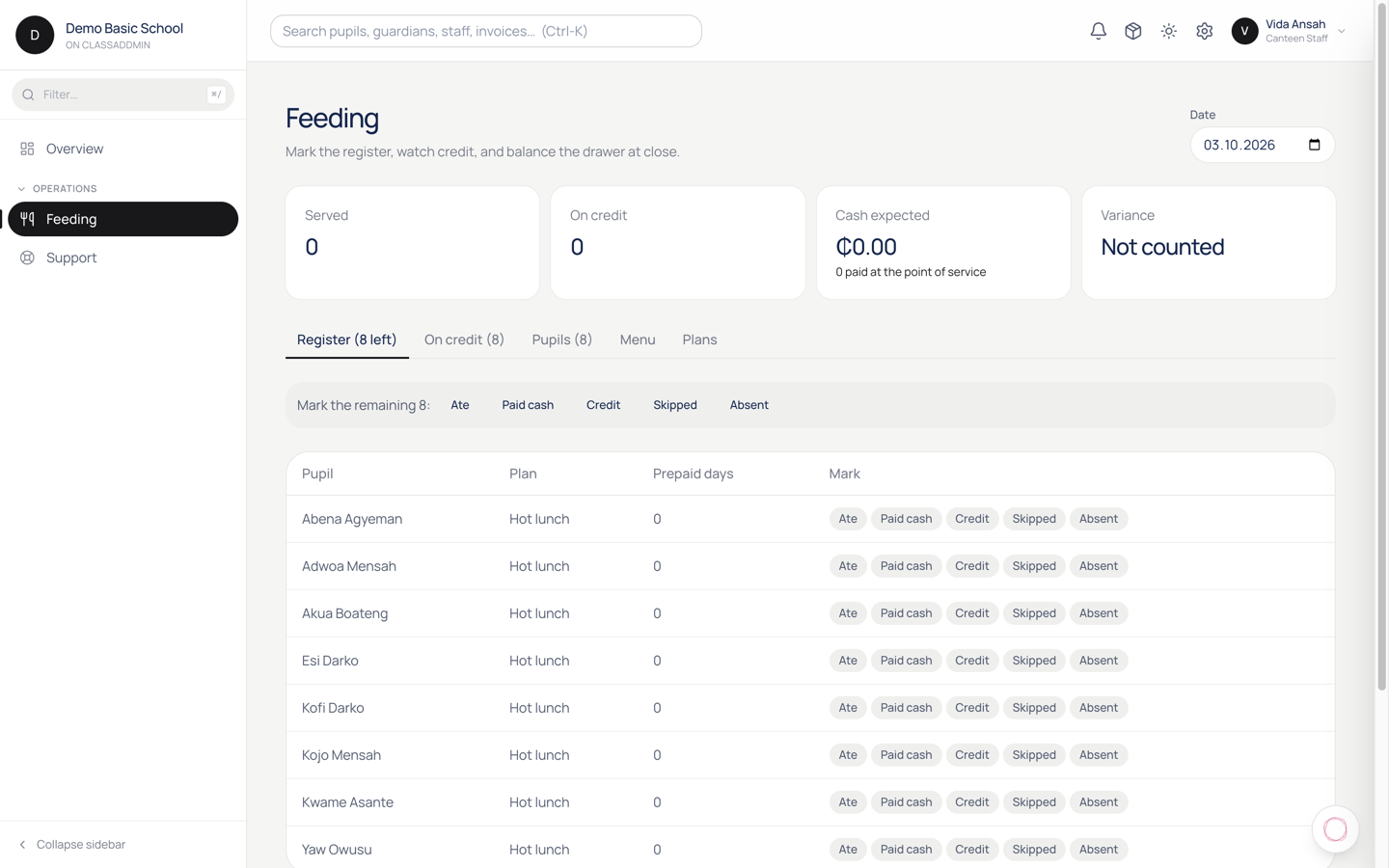
The register is the one feeding screen touched every day. You mark who ate, and everything else — balances, arrears, the cash you should be holding — follows from it.

Find it at Feeding. The register is the first tab, and its label tells you how many pupils are still unmarked.

Steps

  1. Open Feeding. Check the Date at the top is today.

  2. Work down the list. For each pupil, tap one of five marks:

    Mark Use it when What it does
    Ate The normal case Takes one day off a daily balance
    Paid cash They paid at the kitchen today Adds to today's expected cash
    Credit They ate but couldn't pay Adds to what they owe
    Skipped Here, but didn't take a meal Charges nothing
    Absent Not at school Charges nothing
  3. The count in the tab drops as you go. When it's gone, everyone is marked.

The distinction that matters is Skipped versus Absent. Neither charges anything, so it makes no difference to money — but it does tell you whether a pupil who's in school is choosing not to eat, which is worth knowing.

Close the day

At the end of service, still on the register:

  1. Scroll to Close the day. It shows the cash you should be holding, worked out from every Paid cash mark.
  2. Count the drawer and type the real figure into Counted (GH₵).
  3. Save.

If the two don't match, that's the point of doing it — you find out the same day, while someone still remembers. Count before you look at the expected figure if you can; it's easy to "find" the number you were expecting.

On credit

Feeding → On credit lists everyone who has eaten without paying, with how much. Its tab shows the count, so you can see at a glance whether it's growing.

Chase these while they're small. A pupil eating on credit every day for a term arrives at a number no family can settle at once.

Common gotchas

  • A pupil is missing from the register. They have no feeding plan — add them under Feeding → Pupils. The register only lists pupils on a plan.
  • You marked the wrong pupil. Tap the correct mark again; the latest one wins. Marks are per pupil per day, so you can't double-charge by tapping twice.
  • You're marking yesterday. Check the Date box. It's easy to leave it on a previous day after looking something up.
  • Expected cash looks too low. Only Paid cash counts towards it. Meals taken from a prepaid balance were paid for earlier, and credit hasn't been paid at all.
  • A daily-plan pupil ran out mid-service. Their balance can go negative — they still eat. Mark it Credit or take cash, and settle it under On credit.

Balances and top-ups

Prepaid days, low-balance nudges, and taking a top-up.

4.Prepaid balances, top-ups and low-balance reminders

Prepaid balances, top-ups and low-balance reminders — screen

On a daily plan, a pupil's feeding is measured in days paid up front. Each meal served takes one day off. This page is how days go back on, and how families find out before they run out.

Termly plans have none of this — feeding is on the invoice, so there's no balance.

Take a top-up

  1. Feeding → Pupils.
  2. Find the Pupil.
  3. Enter Days to add — for example 20.
  4. Enter Cash taken (GH₵) — what the parent actually handed over.
  5. Save.

Both boxes matter. Days go on the pupil's balance; the cash is recorded as money received. Filling in days but not cash leaves the pupil fed and your books short.

Letting balances run negative

A balance can go below zero. That's on purpose: a child at the front of the queue at lunchtime should be fed, not turned away over an accounting rule.

What it means in practice is that "out of days" isn't a wall, it's a signal. Watch Feeding → On credit and settle balances while they're small.

Low-balance reminders

The school can text the paying guardian when a pupil's prepaid days run low, so families top up before it becomes credit.

  • It's off unless your school has feeding alerts switched on.
  • There's a threshold — the number of days left that triggers the nudge. Three is a sensible default: enough notice to act, not so much that it nags.
  • A guardian gets at most one per day, so a low balance sitting low over a week doesn't produce a message every morning.
  • Only daily plans trigger it. A termly pupil has nothing to top up, so texting them would be noise.

What parents see

In the app, a parent sees the days left on each child's balance and can top up from their phone. That's usually easier than cash at the kitchen, and it means the money is recorded without anyone handling notes.

Common gotchas

  • A top-up didn't change the balance. Check you filled in Days to add, not only the cash box.
  • Cash doesn't reconcile at close of day. Top-ups and meals paid for at the kitchen are different things. Close the day counts only Paid cash marks on the register.
  • A parent says they never got a reminder. Check: feeding alerts on for the school, the pupil on a daily plan, the guardian marked as the primary contact, and a phone number on their record. Any one missing and no message goes out.
  • The balance looks wrong after a plan change. Moving between daily and termly doesn't convert an existing balance. Settle or note the balance before switching.