ClassAddmin
← All guides

Handbook

Cashier Handbook

Front-desk staff taking payments from parents.

Download PDF4 topics across 3 chapters

Getting started

The short version — you only need a few screens.

1.Welcome to ClassAddmin
Welcome to ClassAddmin — screen

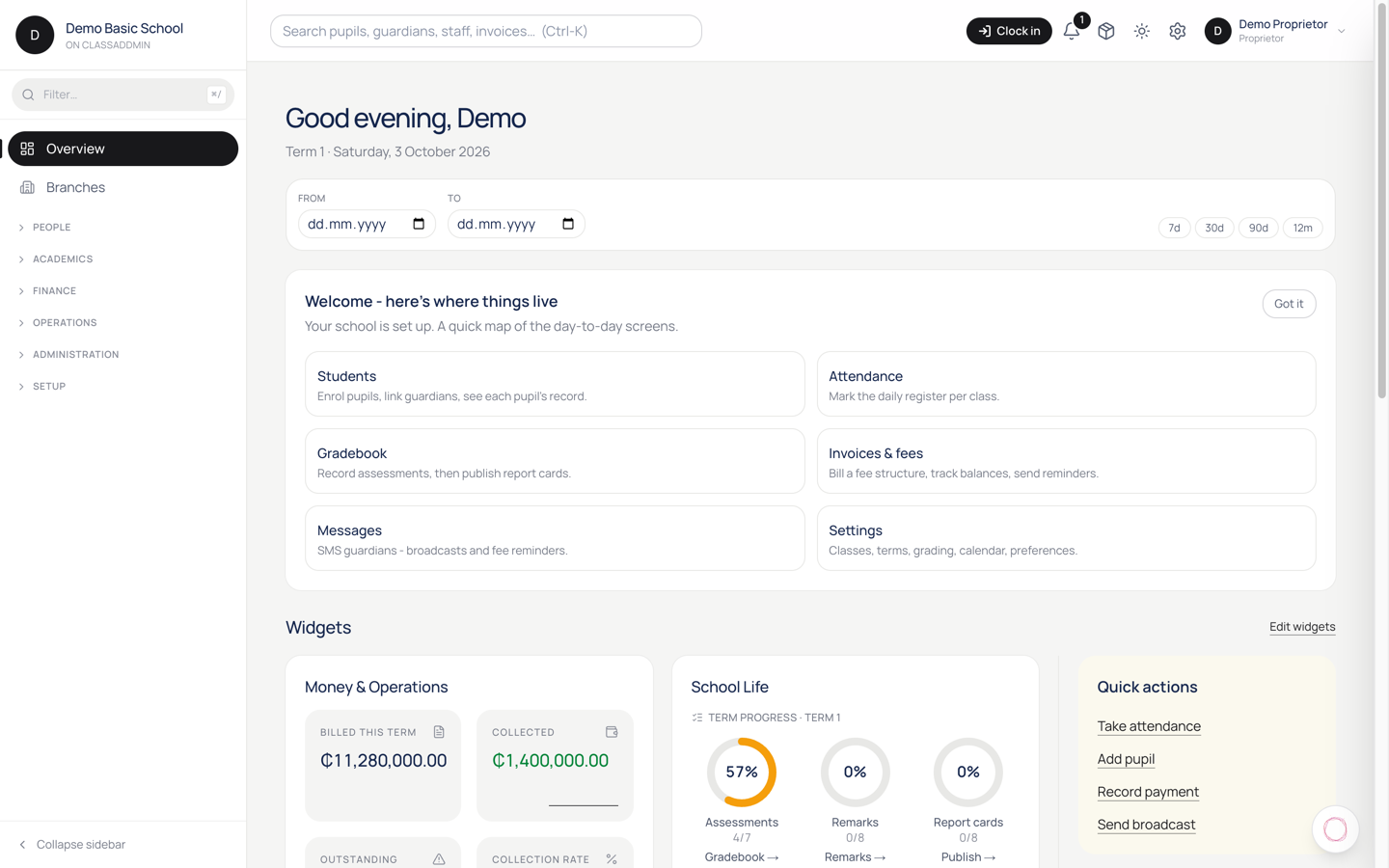
ClassAddmin is your school's day-to-day operations cockpit. From a single dashboard you'll track admissions, mark attendance, send invoices, collect MoMo payments, message parents, and run payroll.

The first time you sign in, head to Overview - that's the home screen. It shows today's collections, this week's absences, anything that needs your attention, and shortcuts to the things you'll touch every day.

You don't need to be a computer expert. Everything lives in the left sidebar: People, Academics, Finance, Operations, Administration. If you can find the right section, you can do the task - every page is built around one job.

Three things to do on day one

  1. Add your school's logo and contact details under Settings → School. They appear on invoices, receipts and report cards.
  2. Invite your team under Settings → Staff. Each person gets a sign-in link by email, SMS or shareable URL.
  3. Open the Help button (bottom-right corner of every page) any time you're stuck. It searches our guides and can answer questions in plain English.

That's it - explore the sidebar at your own pace. If you ever get lost, the back button works the same as in any browser, and clicking the ClassAddmin logo (top-left) takes you home.
Taking money

Recording a payment and giving a receipt.

2.Record a cash or MoMo payment

Record a cash or MoMo payment — screen

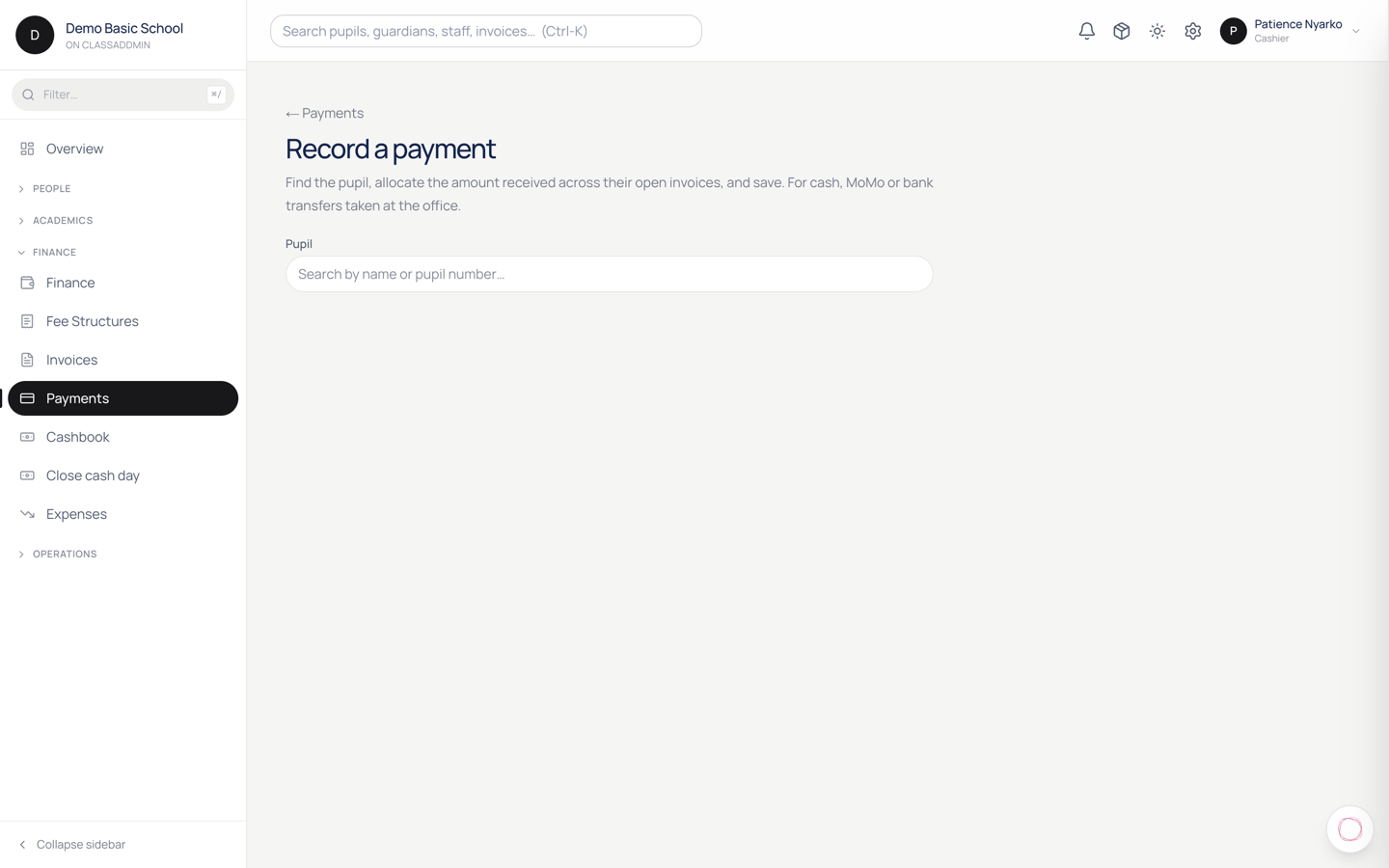
When a parent pays at the office - in cash or by mobile money transfer - record it in ClassAddmin so their balance updates and you can hand them a receipt.

Steps

  1. Click Record payment in the top-right of any finance page (the orange button).
  2. Find the pupil - type their name or admission number; the search is fuzzy.
  3. Pick the method: Cash, MoMo, Bank Transfer.
  4. Enter the amount in GHS. You can split it across multiple outstanding invoices on the same screen - the form shows each pupil invoice and lets you allocate.
  5. (Optional) Add a note - useful for "paid by grandmother" or "MoMo ref 9988**".
  6. Click Save. The payment lands as success; receipt prints automatically.

What if the parent only paid part of one invoice?

That's fine. The invoice flips to partially_paid and the remaining balance carries over. You can record another payment against the same invoice later - they'll stack.

What if a parent paid over the phone via MoMo before coming in?

Same flow - pick MoMo and paste the transaction reference in the notes. The cashier in the office sees the same form as a parent who walks in with notes.

Online MoMo payments

If your school is on the Family or Plus tier, parents can pay from their phone via the parent portal link. Those payments don't need recording - they post automatically via the Paystack webhook the moment they're confirmed.

Reversing a mistake

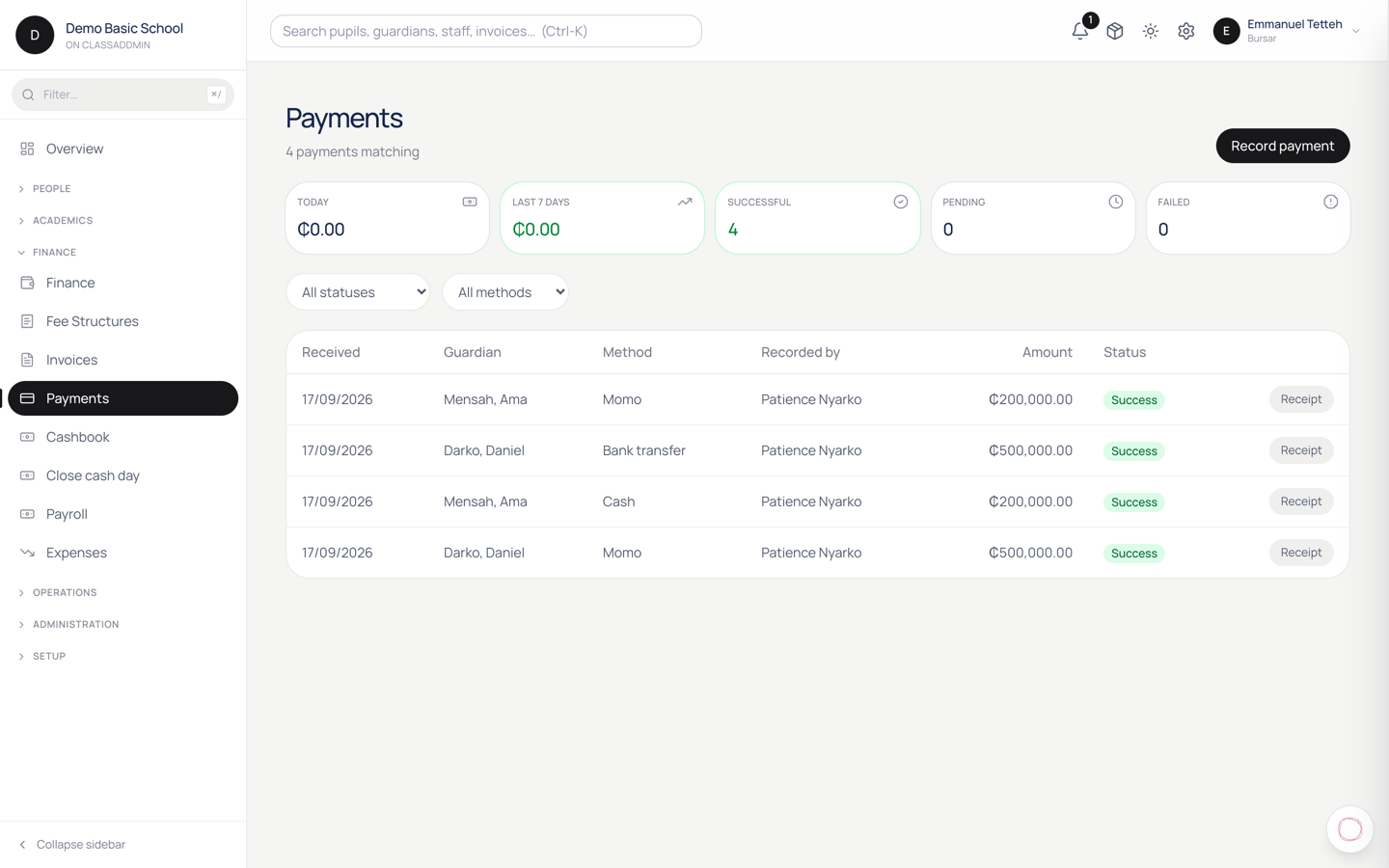
Go to Payments, find the row, click the three-dot menu → Reverse. A reversal entry is created (it doesn't delete the original - that would break the audit log). The parent's balance goes back to what it was before.

3.Reverse or refund a payment

Reverse or refund a payment — screen

Sometimes a payment was wrong - wrong child, wrong invoice, wrong amount, or the parent paid by mistake. You don't edit the original; you reverse it, which creates a balancing entry that keeps the audit log clean.

Reverse a payment that hasn't been spent

When a payment is fresh and the parent wants a refund:

  1. Payments → find the row.
  2. Click the ⋮ menu → Reverse.
  3. Pick a reason:
    • Wrong amount - the parent paid more than intended.
    • Wrong invoice - paid against the wrong child.
    • Duplicate - the same payment was recorded twice.
    • Parent request - they changed their mind.
  4. (Optional) Add a note.
  5. Click Confirm.

The system:

  • Creates a reversal payment for the same amount, dated today.
  • Adjusts the original invoice's balance back to what it was before the payment.
  • Posts a reversing journal entry in the books.

You still owe the parent the money in real life. Hand them cash or send a MoMo transfer - ClassAddmin doesn't initiate refunds to MoMo wallets automatically. After you've physically refunded, you're done; the books reflect it.

Re-allocate (instead of refund)

Most "mistakes" don't need a refund - they need to be re-allocated to the right invoice.

  1. Payments → find the row.
  2. Click the ⋮ menu → Re-allocate.
  3. Pick the correct invoice (or split across multiple).
  4. Click Save.

The original allocation is reversed, the new one is created. No cash moves; the parent's overall balance is unchanged.

Paystack/MoMo refunds

If the parent paid online via Paystack, you can issue a Paystack refund from your Paystack dashboard - that returns the money to their wallet directly. In ClassAddmin, then reverse the payment with reason "Refund via Paystack" so the books match.

Partial refunds

Right now, refund is all-or-nothing - you can't reverse half a payment. To do a partial refund:

  1. Reverse the full payment.
  2. Re-record a smaller payment for the portion the parent actually owes/keeps.

Common gotchas

  • "This payment is already linked to an installment plan step" - reversing it also reverses the plan step. The plan recomputes; remaining steps shift back.
  • The reversal doesn't show on the parent portal - the portal shows balance, not history. Once you reverse, their balance reflects the change immediately.
  • Audit log shows me as the reverser, not the original cashier - correct. Both the original and the reversal stay on the log.

Closing the day

Balancing your drawer before you go home.

4.Close out cashier shift at end of day

Close out cashier shift at end of day — screen

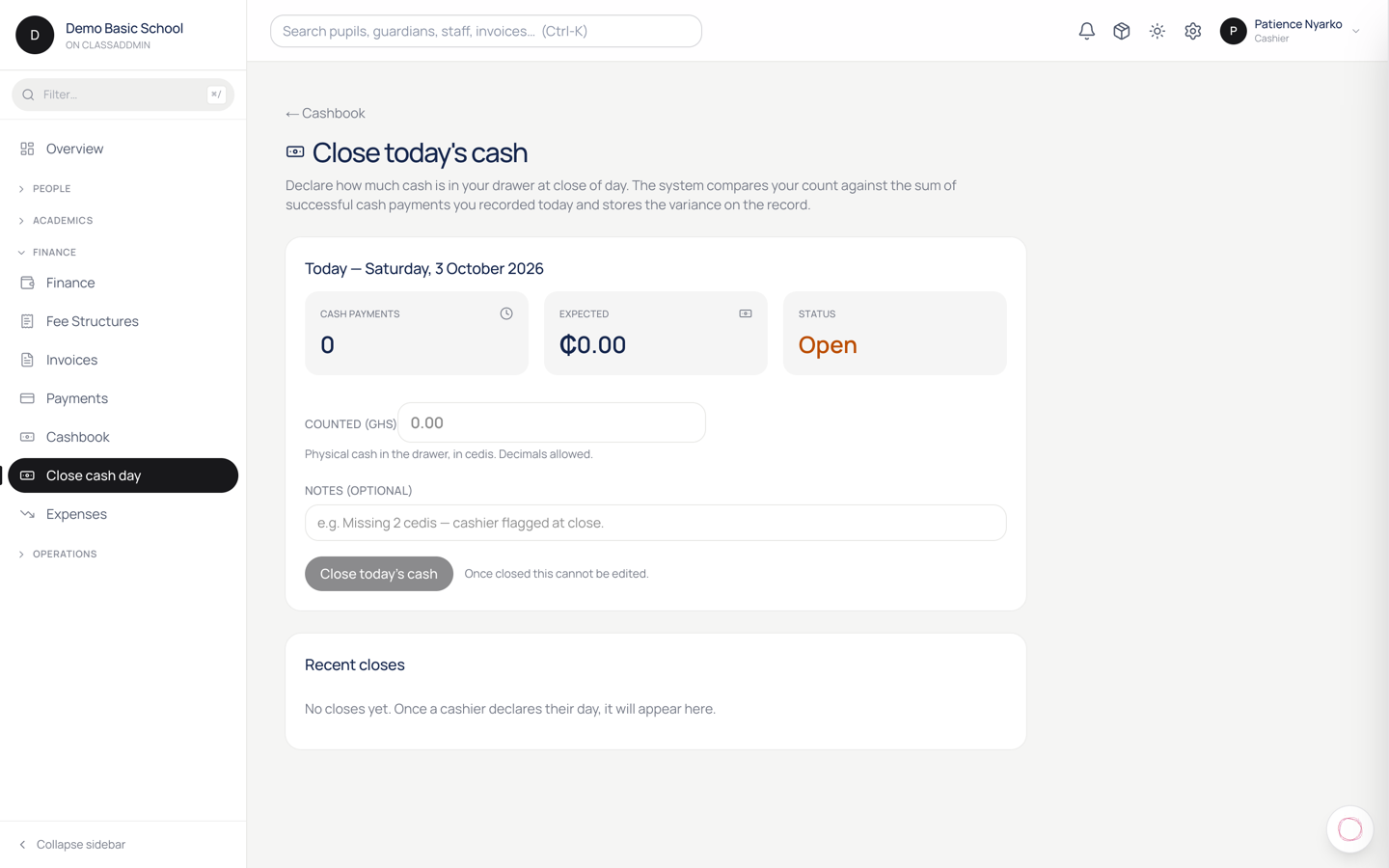
If your school has someone manning the cash desk during fee-collection days, do a daily close-out - count what's in the drawer, compare to what ClassAddmin recorded, and bank the difference. This is how you catch errors (and prevent shrinkage).

Steps

  1. Payments in the sidebar.
  2. Filter the list to today + method = cash. The total at the bottom is what ClassAddmin says you should have collected.
  3. Count the cash drawer. Write the number down - your own count, not what the system says.
  4. Open Payments → End-of-day report (top right).
  5. The report shows:
    • System total - what ClassAddmin recorded for today, by method.
    • A field for your actual count.
  6. Type your count in. The system shows the variance - over (good problem), under (bad problem), zero (well done).
  7. Click Save report.

When the count matches the system

You're done. Lock the drawer, bank the cash, file the report.

When the count is under

You took in less cash than the system says was recorded. Two common causes:

  • A payment was double-recorded. Look for two payments for the same parent on the same day with the same amount. Reverse the duplicate.
  • Someone keyed the wrong amount. Match each receipt in the drawer to a payment row; the mismatch should jump out.

If you can't find the cause and the gap is small, write it up in the End-of-day report note field - "GHS 20 short, no obvious cause" - and move on. Patterns of small shortages over weeks need a conversation with the cashier and a tighter process.

When the count is over

You have more cash than recorded. Usually:

  • A payment wasn't entered. Compare receipts to payment rows; if a receipt has no matching row, record the payment now (backdated to today).
  • A parent paid you cash but you wrote a MoMo reference. Look for MoMo payments that don't have a real MTN reference.

After the report

  1. Bank the cash - physically take it to your bank's branch or deposit at an agent.
  2. Record the deposit as a journal in the books: DR Bank (whichever bank), CR Cash on Hand. See Post a manual journal.
  3. End the shift in the audit log - the cashier signs out. Useful when there are multiple cashier shifts in a day.

Reports for the proprietor

The proprietor or head teacher can see all end-of-day reports under Finance → End-of-day reports. Spot a pattern (always GHS 5-20 short on Fridays?), flag the cashier or the process.

Common gotchas

  • "System total is zero but I collected cash" - you might have recorded the payments against tomorrow's date. Check; reverse and re-record.
  • Reversed payments still in the count - they're not. A reversed payment shows as zero in today's total. If you're double-counting, you're seeing the original + the reversal as separate rows but the net is zero.
  • Bank deposit doesn't reconcile - the bank-rec page (Books → Bank → Reconcile) is where you'd match this deposit against the bank statement. See Reconcile a bank statement.