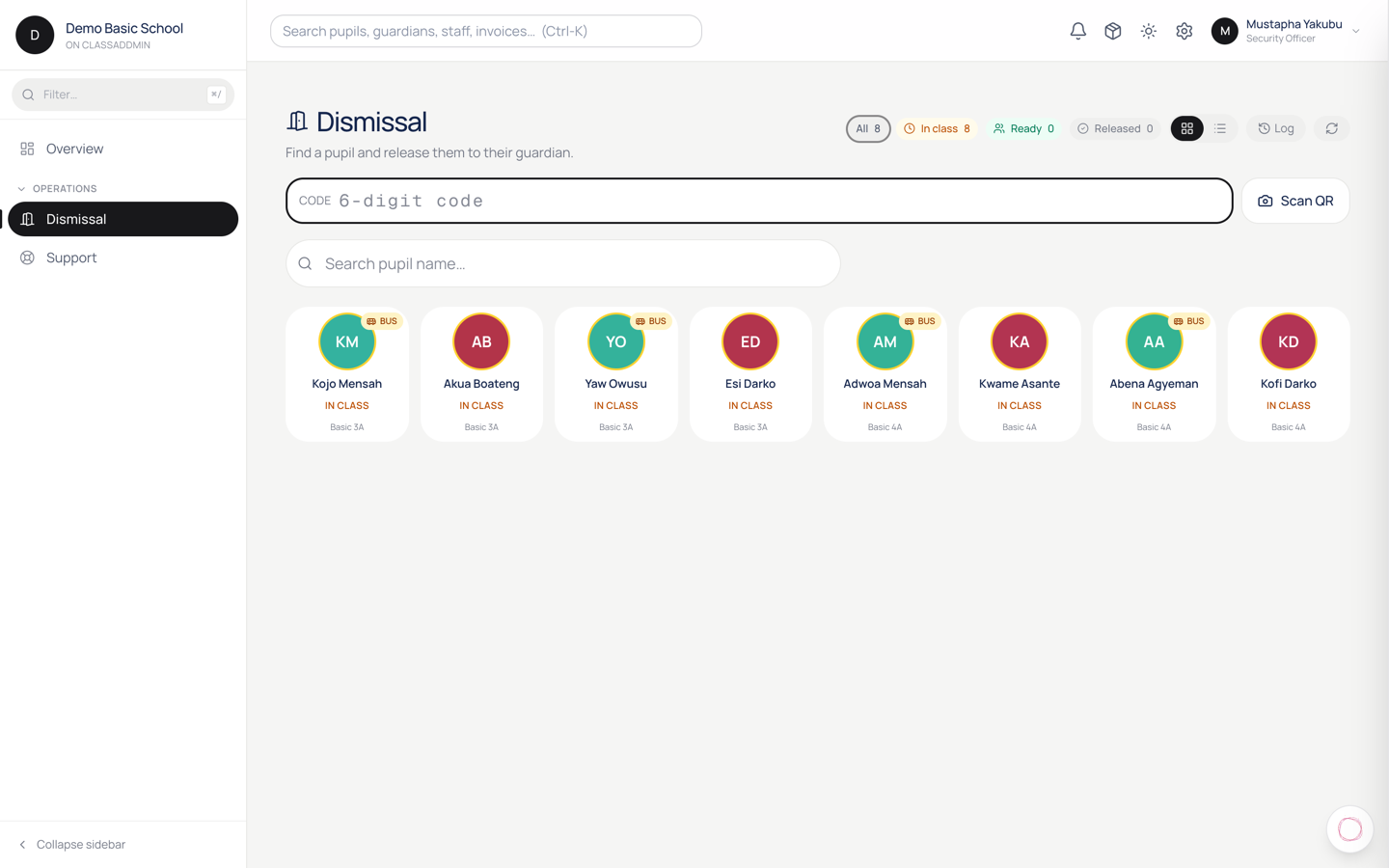
You are the last check before a child leaves the school. This screen (/dismissal) is designed for one job: verify who's collecting, tap Release.
The layout
- Fast-lane at the top: a 6-digit code field, a Scan QR button, or both — whichever your school chose in Settings → Preferences → Dismissal.
- Search below it: type any letters of the pupil's name, matching tiles filter live.
- Roster grid: every pupil enrolled today. Ring colours tell you the state:
- Amber ring — still in class. Ask the class teacher to hand off first (if your school runs the two-step flow).
- Emerald ring — Ready. Safe to release.
- Zinc ring, dimmed — Already released today. Can't tap.
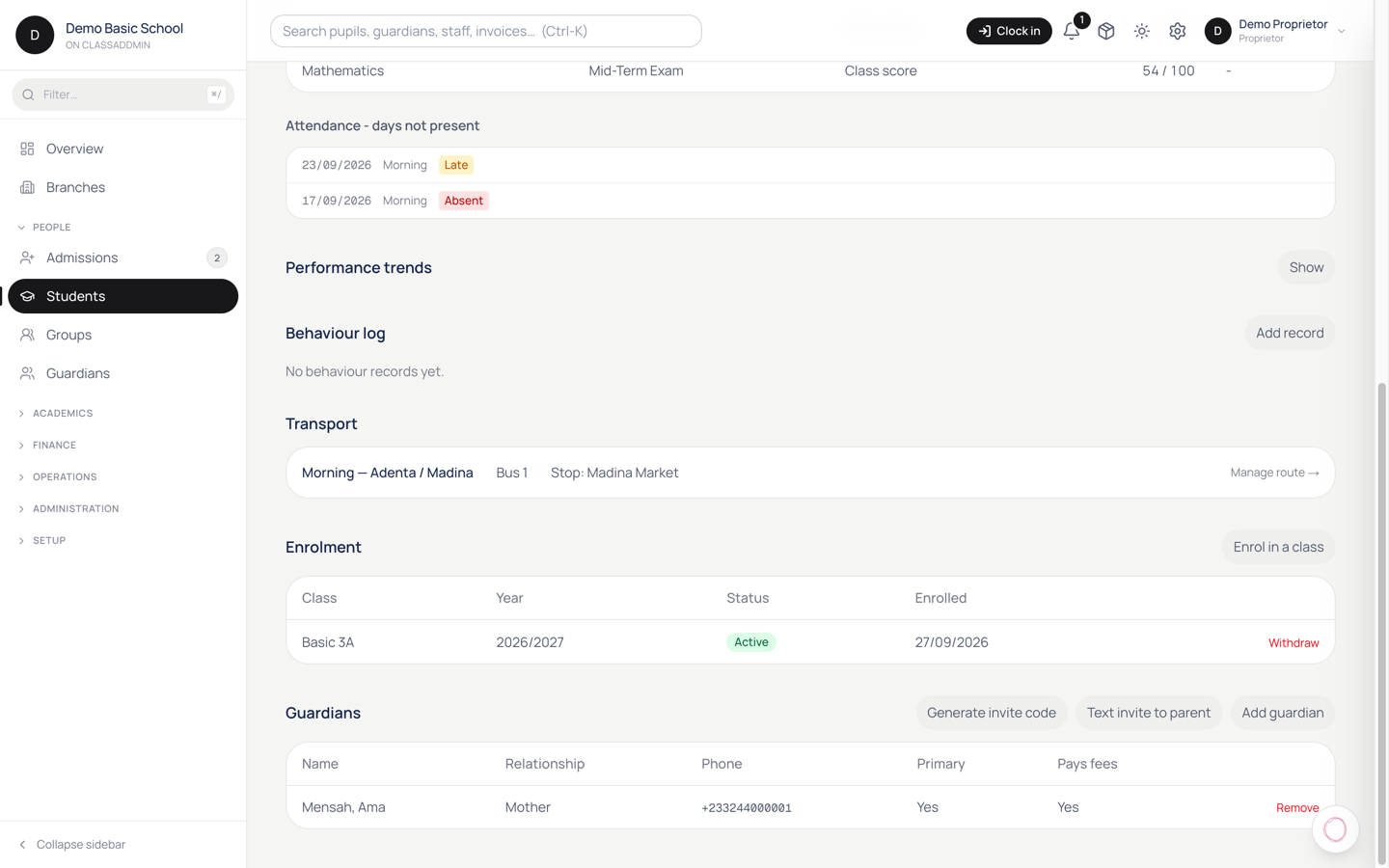
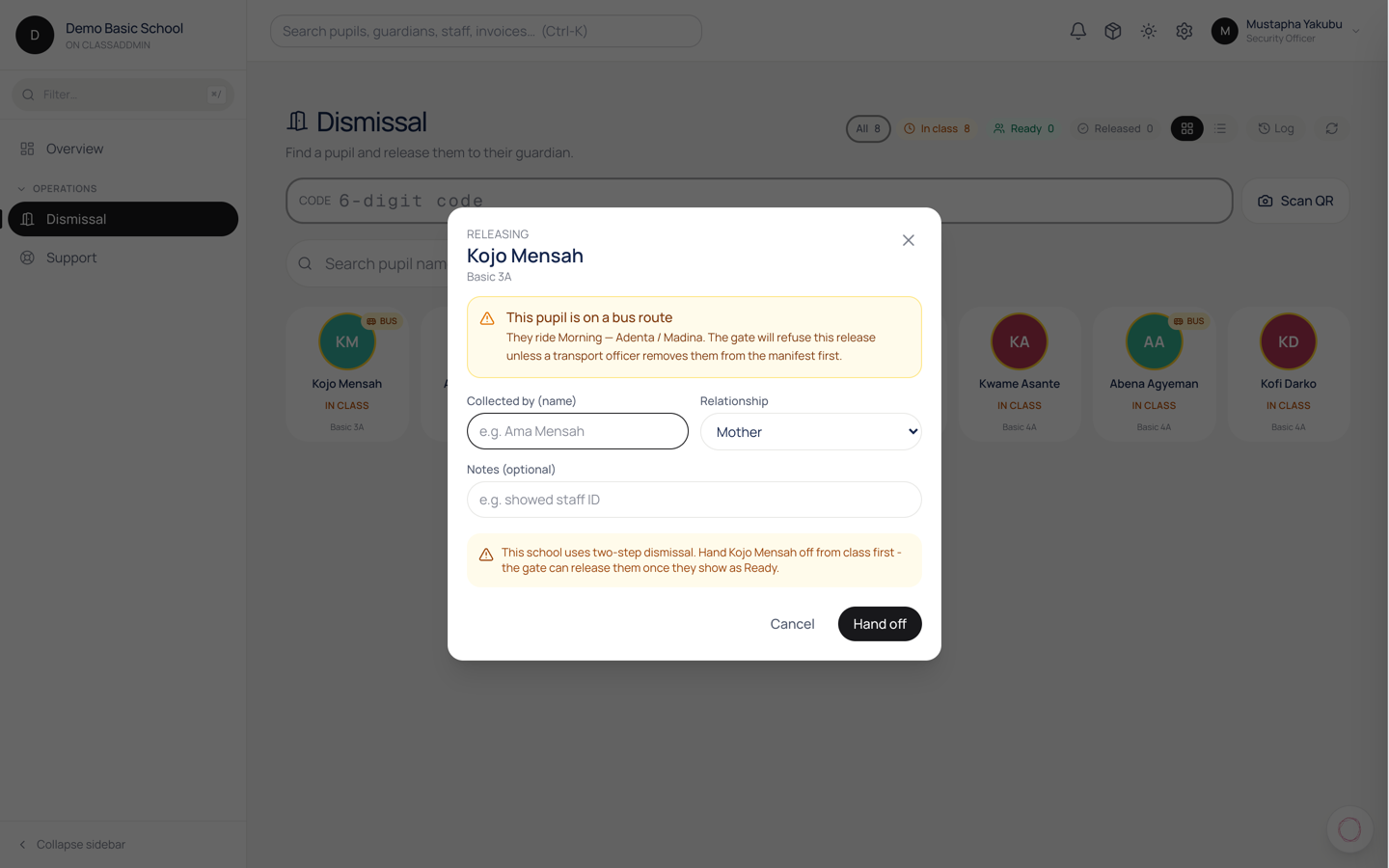
- BUS chip in the corner of a tile — pupil is on a bus route. Walk-collection is refused.
The three ways to verify
You'll use one of these three every time:
1. Face-tap (the common case)
- Tap the pupil's tile → modal opens.
- Under Who's collecting? you see a grid of authorised guardian faces.
- Tap the face you see standing at the gate.
- Tap Release.
If a photo isn't on file, you'll see initials. You still have the name + last-4 phone to check — ask the guardian "what's the last four of your phone?" If it matches, release.
2. Delegation code (parent sent someone else)
If the person at the gate is not a guardian you recognise, they may be a one-off delegate.
- Ask if they have a 6-digit code. Type it in the fast-lane field at the top.
- The modal opens automatically with the delegate's name + why the parent sent them + the last-4 of their phone.
- Confirm the phone last-4, tap Release.
If the code is wrong / expired / already used, the message tells you exactly which — read it aloud to the person at the gate so they can call the parent.
3. QR scan
If your school uses QR:
- Tap Scan QR.
- Camera opens. The parent holds their phone up — the modal opens the instant it decodes.
- Confirm the name that appears, tap Release.
QR codes rotate every 60 seconds. If it doesn't scan, ask the parent to unlock their phone again to refresh.
Sibling batch
When a guardian is collecting more than one of their children:
- Pick the guardian's face (or QR/code) for the first pupil.
- A green Also collecting today panel appears, listing every ready sibling that shares this guardian. All are pre-checked.
- Tap Release — every checked pupil is released as one action.
Uncheck any pupil who's staying back for after-care.
The transport hard-block
Some pupils go home by school bus. When you tap one of those, the release is refused with:
Kofi is on Route 2. To collect at the gate, ask a transport officer to change today's manifest first.
Don't try to work around it — call the transport officer or head-teacher, they'll move the pupil off today's route, then you can release normally. The refusal itself is logged so it's clear the correct process was followed.
Override — the escape valve
If a legitimate release genuinely fails all verification (parent has no phone, no code, no way to prove ID) and the head-teacher is on hand, they can approve an override. Every override is red-flagged in the audit log with the reason the head-teacher gave. Use sparingly — it's meant for exceptions, not for skipping steps at busy times.
After you release
Every release fires an SMS to the primary guardian within a minute:
Kofi was collected by Ama Mensah (mother) at 15:42 from main gate.
If a parent later says "I didn't know you released my child" — check the audit log, screenshot the SMS record, and the head-teacher can explain what happened.